Access to the Laboratory Computer
There are two ways to analyse the data collected during the lab course: 1. Perform the analysis directly on the computer columba at the university (by prior arrangement). 2. Log in to this computer remotely from another system (e.g. from home) and perform the analysis there.
External Login
Data analysis can also be carried out remotely, either from the computer pool of the Physics Institute or from a private computer with an internet connection. Several access methods are available, each with its own advantages and disadvantages.
Requirements
Credentials are provided by the supervisors or communicated during the introduction:
 User:      alpha
 Password:  will be provided
alpha is used here as an example and must be replaced by the corresponding group name.
To access the analysis computer from outside the university network, you must first connect to the university network via VPN. Instructions can be found on the ZIM website.
Linux / Unix
Since all astrophysics computers run Linux, logging in from another Linux/Unix system is straightforward. In most cases, a simple SSH login is sufficient to perform the complete data analysis remotely.
Graphical output (e.g. FITS viewers or editors) is also supported, although performance depends on the connection speed. Within the university network this is usually not an issue, but from home the performance may be limited.
Login via terminal:
ssh -Y alpha@columba.astro.physik.uni-potsdam.de
You will be prompted for your password. The parameter -Y (capital Y) enables forwarding of graphical output.
Xpra
Alternatively, you can use Xpra, which also uses SSH but allows more stable work with graphical applications, especially on slower connections.
After installation, a connection can be established with:
xpra seamless ssh:alpha@columba.astro.physik.uni-potsdam.de --start=konsole
The command is similar to the SSH login above. Replace alpha with the appropriate group name.
After a successful connection, an Xpra icon or menu usually appears on the desktop (under Ubuntu in the upper-right corner near network/volume/battery indicators). From this menu, programs can be started directly on the remote system. The application windows integrate seamlessly into the local desktop.
You can detach from a running session without terminating it:
xpra detach
Reconnect with:
xpra attach ssh:alpha@columba.astro.physik.uni-potsdam.de
Terminate the session with:
xpra exit
Windows
Since Windows does not use the X-Window system, graphical output from Linux systems cannot be displayed directly. Therefore, an additional X server (X11 server) must be installed.
Recommended tools are:
MobaXterm
MobaXterm is an SSH client that includes a built-in X11 server.
To improve connection stability, it is recommended to enable the SSH keepalive option and restart the program.
PuTTY and Xming
Required software
Xming should be installed and ideally started automatically with the system. PuTTY requires only minimal configuration:
- Enter
columba.astro.physik.uni-potsdam.deas hostname in the Session menu - Enable
X11 forwardingunder Connection → SSH → X11 - In case of problems with the graphical output, set
localhost:0as the display location
Operating System Independent
X2Go
An X2Go server is installed on the laboratory computer columba, allowing efficient remote work with graphical applications. The X2Go client is available for all major operating systems, including Windows, Linux and macOS.
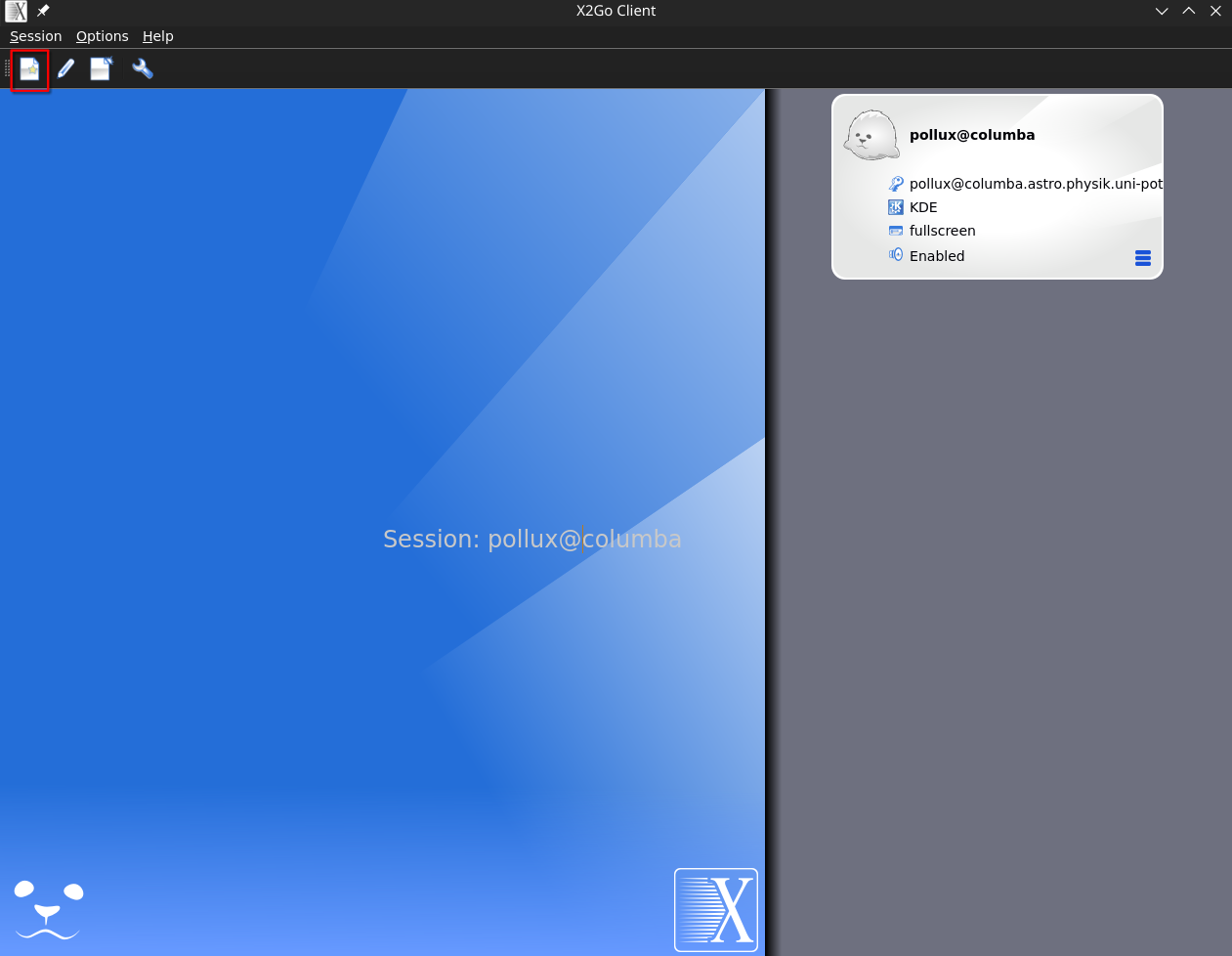
After installing the client, create a new session via Session → New session ….


Configure the following parameters:
- Session name: arbitrary
- Host:
columba.astro.physik.uni-potsdam.de - Login: e.g.
alpha
In the Input/Output tab:
- Enable Fullscreen
- Disable Set display DPI
After clicking OK, start the session by double-clicking the entry. You will then be prompted to enter your password:

Attention Wayland users: If the client crashes, try starting it via:
env QT_QPA_PLATFORM=xcb x2goclient
Remote Desktop Protocol
This method is currently in beta.
This method is currently not working reliably.
In addition to the above methods, you can log in to columba using the Remote Desktop Protocol (RDP). This protocol, developed by Microsoft, is highly efficient and enables the entire desktop to be displayed without any significant loss of speed. There is a free Linux implementation, so we can use this with columba too. However, as RDP is not considered the most secure method, you must first establish an SSH tunnel to Columba before connecting to the RDP server.
Linux
On Linux, Remmina is the recommended option:
- Start the program and create a new connection
- Enter a name for the configuration
- Server:
127.0.0.1:3389 - Enter username and password
- Enable
Use client resolution
Under SSH Tunnel:
- Enable
SSH tunnel - Server:
columba.astro.physik.uni-potsdam.de - Enter username and password
Start the connection via Save and Connect.
If you are satisfied with the connection speed, the Advanced tab allows you to improve the quality of your connection.
.


Windows 11
Firstly, an SSH tunnel must be created using PowerShell, as the Windows RDP client does not support this:
ssh -L 3399:127.0.0.1:3389 alpha@columba.astro.physik.uni-potsdam.de
You can then connect using an RDP client. The following settings must be configured:
- Computer:
localhost:3399 - User name: e.g.
alpha Allow me to save credentials(optional, it may be necessary to click onShow Optionsfirst)
Click Connect to establish the connection. You will then be prompted to enter your password.

External Login from the Physics Computer Pool
The computers in the Physics computer pool (room 2.28.1.101) can also be used to access the laboratory computer via SSH. Due to the high network speed, efficient work is possible without prior reservation.
Accounts can be requested from Mr H. Todt (room 2.28.2.004).
Working Directly on the Data Reduction Computer
The laboratory computer (columba) is available for on-site data analysis (room 2.28.2.009) and can be booked via email.
File Transfer via SFTP
Regardless of the operating system, it is possible to log in via SFTP (SSH File Transfer Protocol) solely for the purpose of exchanging data. This requires an SFTP programme. These are available for virtually every operating system, whether console-based or with a graphical user interface. Users accustomed to a graphical user interface can use WinSCP, for example, as a free SFTP client.
The login details for the SFTP client are identical to those for SSH access:
 Server:   columba.astro.physik.uni-potsdam.de
 Protocol: SFTP
 User:     alpha
 Password: as provided
Similarly, alpha is used here merely as an example and must be replaced with the relevant group name.
Note: SFTP is intended for file transfer only. It does not allow execution of programs.